Error has occurred!
- KB317
- Oct 11, 2023 03:16 AM
How do I use Orca and mst to deploy your products
Case
We want to roll out your products using the MSI and an accompanying MST.
We have installed Orca and opened up the MSI and then got very lost trying to find which fields I should edit to input the licenses key and user details, can anyone point me in the right direction?
Resolution
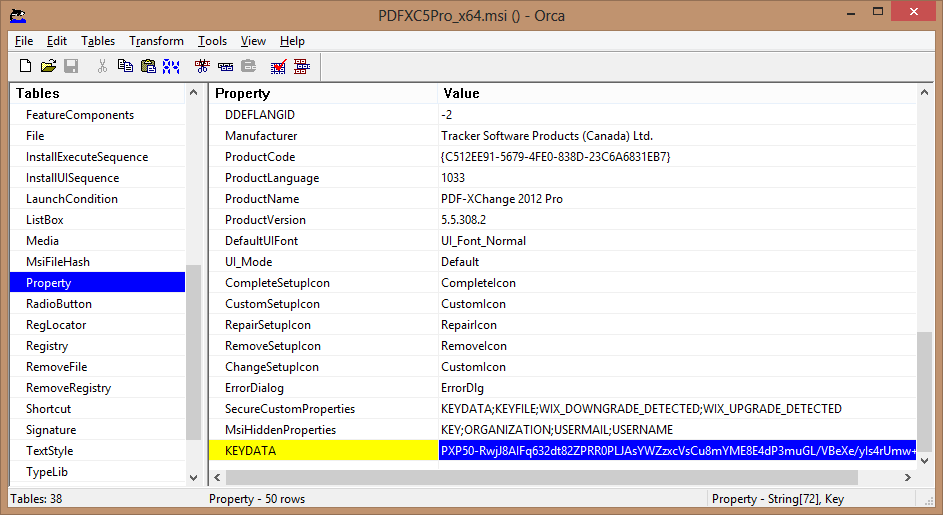
You will need to add a row to the Property table in the .msi file, then save the changes in the transformation file (.mst).
- Open the MSI file you wish to modify.
- Transform --> New Transform
- On the left hand panel (Tables) select the "Property" table
- Right click in the right hand panel and select "Add Row" (CTRL+R)
- Enter the term KEYDATA in the "Property" field and the string value of your key, in one line, in the "Value" field.
- Save the transform for use when deploying.
The value of KEYDATA is the string that is your serial key, the vlaue of KEYFILE is a valid UNC path to your xcvault file.
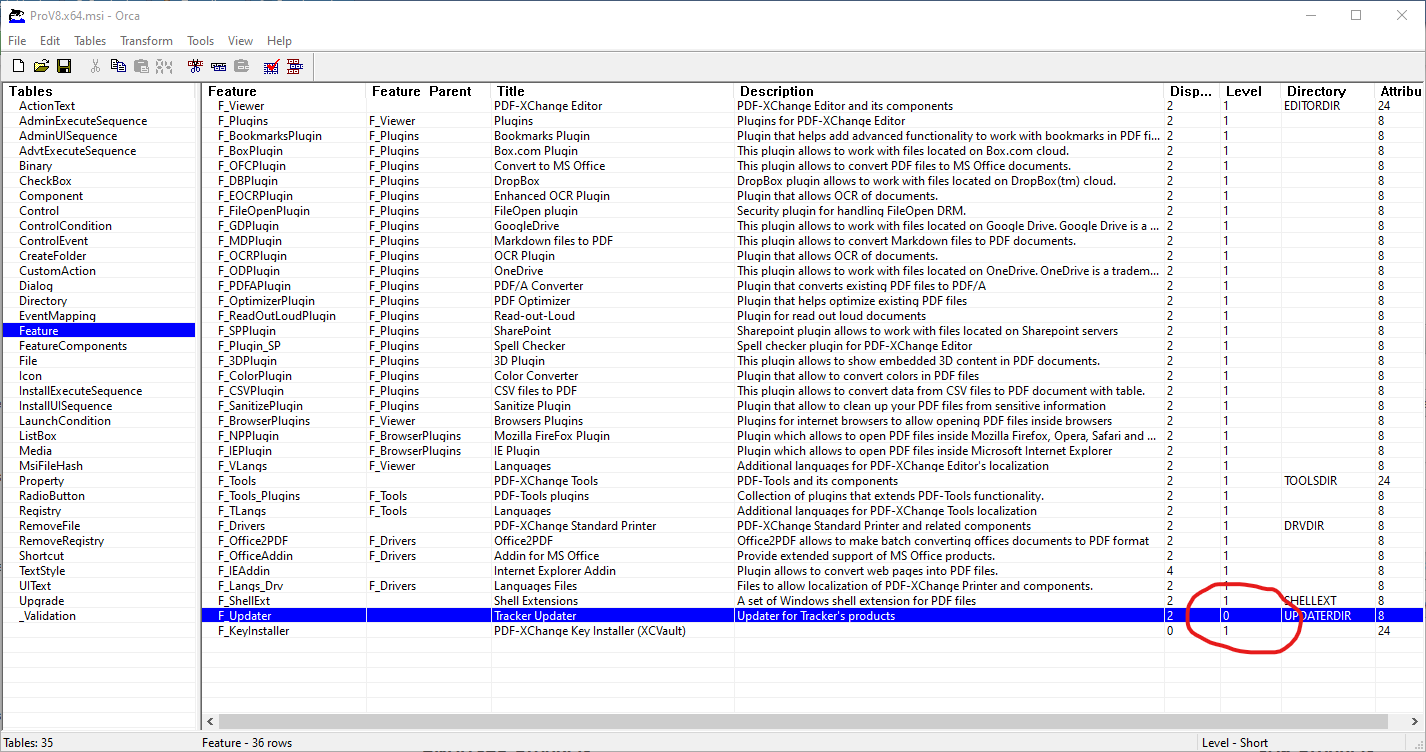
If you only want to install some of the components, do this in the Feature Table, setting 0 for features that are not to be installed. By default all features are 1 (installed).
More Like This
- KB#282: Why won't the "Send by E-mail" feature work in conjunction with Microsoft Outlook?
- KB#338: What are the MSI installation switch options for the PDF-XChange family of products?
- KB#456: How Do I Customize toolbars in PDF-XChange Editor?
- KB#447: How do I determine what version I should install/how can I retrieve my serial key?
- KB#286: How do I manage licenses for PDF-XChange Products on a Windows Terminal Server?