Error has occurred!
- KB354
- Oct 09, 2023 11:01 PM
How do I create a single PDF document from multiple scanned pages?
Question
How do I create a single PDF document from multiple scanned pages?
I have a number of pages that I want to scan into a single PDF document. When I scan pages they each become a separate PDF document that I must then merge to create a single document. Is there a more efficient way to perform this operation?
Answer
PDF-XChange Editor
The From Image Files option can be used for this purpose:
1. Under the Convert Tab, Click From Files > From Image Files:
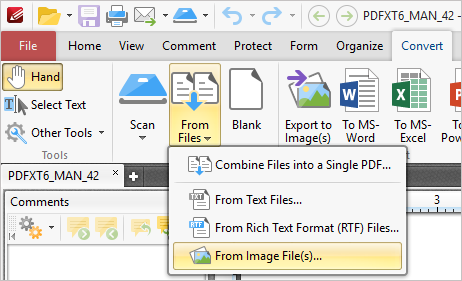
The Image to PDF dialog box will open.
2. Click Import:
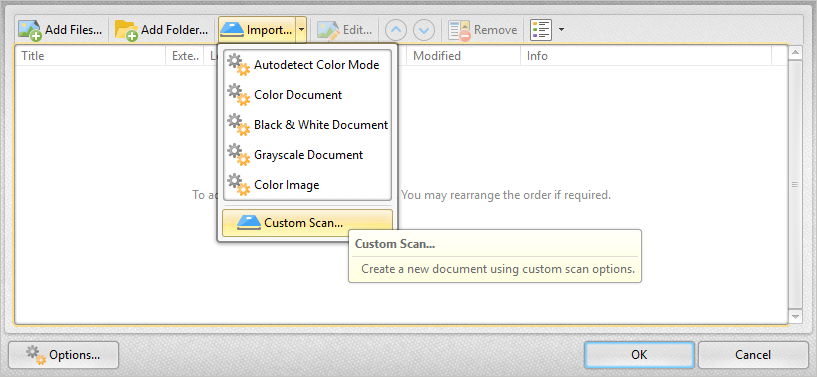
The Scan Properties dialog box will open:
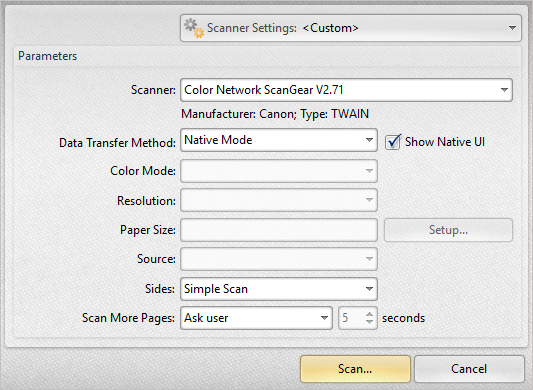
- Click the Scanner Settings menu to save/select scanning profiles.
- Click the Scanner menu to select a scanner to use.
- Click the Data Transfer Method menu to select either Native Mode or Memory Mode:
- Native Mode uses a single memory buffer. This is the default and fastest mode, and is compatible with the broadest range of scanners.
- Memory Mode enables the use of multiple memory buffers. This is a useful function in cases where memory is low and/or when large images are being scanned.
- The Show Native UI box is selected by default, which means the user interface of the device driver is used. This is the most reliable option, and the scanner will select certain parameters of the scan itself: Color Mode, Resolution, Paper Size and Source. Clear the Show Native UI box to customize these options:
- Color Mode has four options: Auto detect, Color, Grayscale and Black & White. These refer to the format of scanned documents.
- Resolution sets the dpi (dots per inch) of scanned documents.
- Paper Size refers to the size of the paper used when scanning. Click Setup for further options, which are as follows:
- The Automatic option determines the paper size automatically.
- The Standard option contains standard sizes such as those used by the ISO and ANSI.
- The Custom option can be used to enter custom dimensions.
- Source has three options Auto, Flatbed and Feeder. These refer to the type of scanner being used.
- Click the Sides menu to determine which sides of documents are scanned. There are three options: Simple Scan, Manual Duplex and Manual Duplex Reversed. Click the dropdown arrow for an explanation of these options.
- Click the Scan More Pages menu to select the setting for when additional pages are scanned.
- Click Scan to scan the page, which will then be added to the documents listed in the Image to PDF dialog box.
- Repeat steps 2 and 3 until all desired pages have been added to the list.
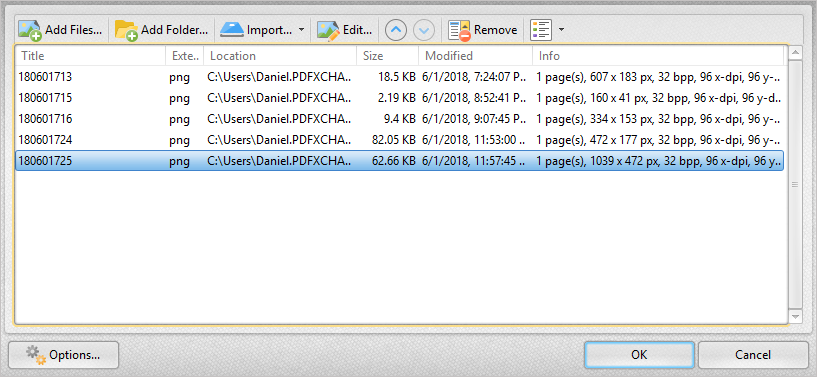
- Click the Options button in the Image to PDF dialog box to determine settings for the final document, as detailed here.
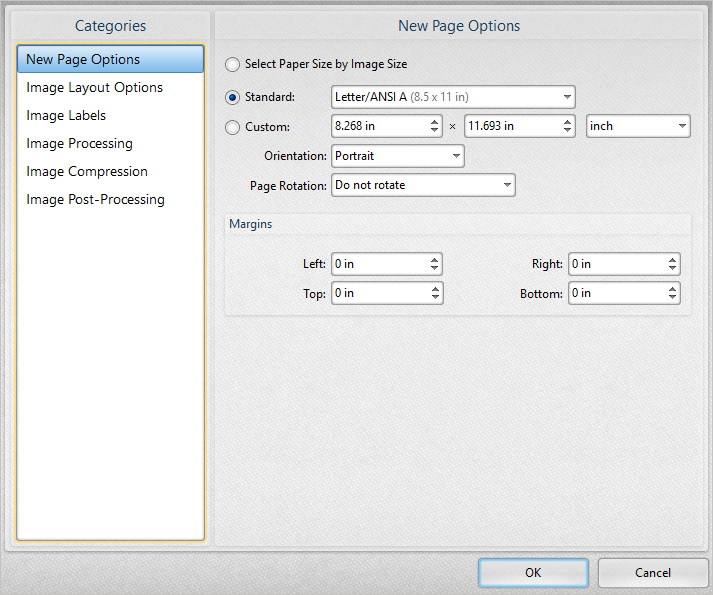
- Click OK to combine the pages into a single PDF.
PDF-Tools
1. Click Create PDF in the Categories menu, then right-click Create PDF from Images and click Run:
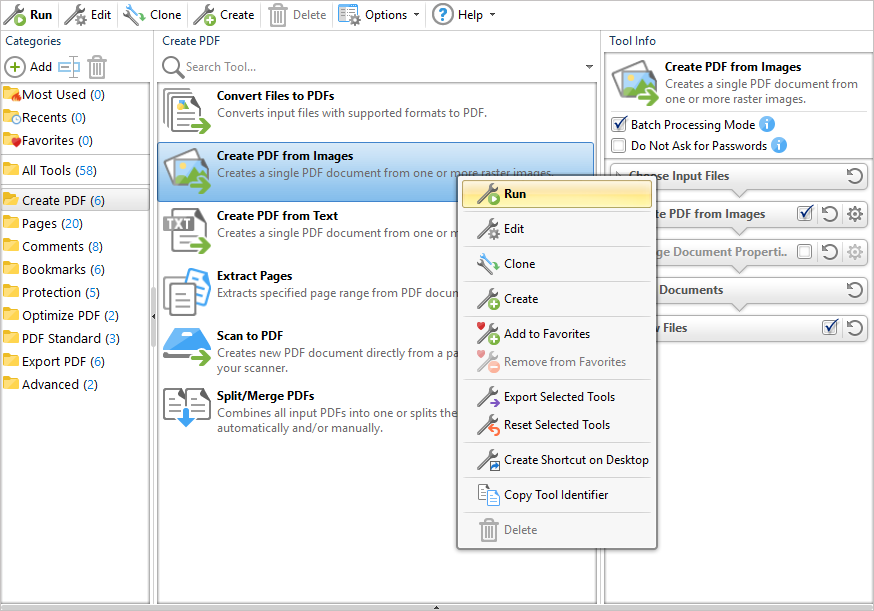
The Choose Input Files dialog box will open.
2. Click Add From Scanner:
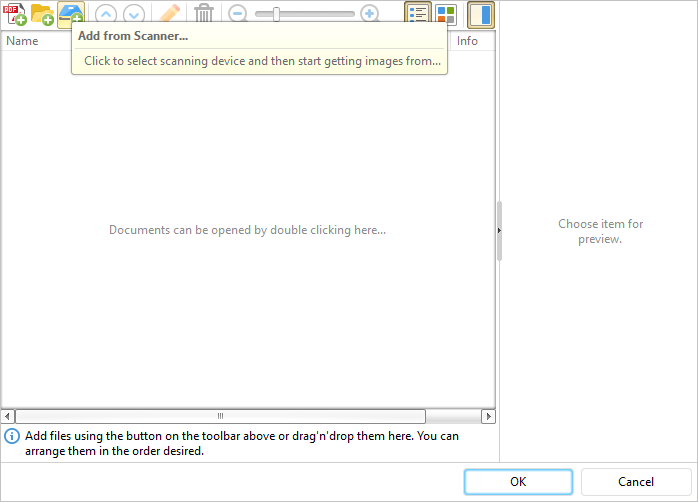
The Scan Properties dialog box will open.
- Click the Scanner Settings menu to save/select scanning profiles.
- Click the Scanner menu to select a scanner to use.
- Click the Data Transfer Method menu to select either Native Mode or Memory Mode:
- Native Mode uses a single memory buffer. This is the default and fastest mode, and is compatible with the broadest range of scanners.
- Memory Mode enables the use of multiple memory buffers. This is a useful function in cases where memory is low and/or when large images are being scanned.
- The Show Native UI box is cleared by default, which means the user interface of PDF-XChange Tools is used. This usually offers a greater amount of customizable settings - including the option to store scan parameters for subsequent use. When the Show Native UI box is selected the user interface of the device driver is used. This provides fewer options but can be more reliable in some cases. It also means the scanner selects certain parameters of the scan itself: Color Mode, Resolution, Paper Size and Source. Clear the Show Native UI box to customize these options:
- Color Mode has four options: Auto detect, Color, Grayscale and Black & White. These refer to the format of scanned documents.
- Resolution sets the dpi (dots per inch) of scanned documents.
- Paper Size refers to the size of the paper used when scanning. Click Setup for further options, which are as follows:
- The Automatic option determines the paper size automatically.
- The Standard option contains standard sizes such as those used by the ISO and ANSI.
- The Custom option can be used to enter custom dimensions.
- Source has three options Auto, Flatbed and Feeder. These refer to the type of scanner being used.
- Click the Sides menu to determine which sides of documents are scanned. There are three options: Simple Scan, Manual Duplex and Manual Duplex Reversed. Click the dropdown arrow for an explanation of these options.
- Click the Scan More Pages menu to select the setting for when additional pages are scanned.
- Repeat steps 2 and 3 until all desired pages have been added to the list.
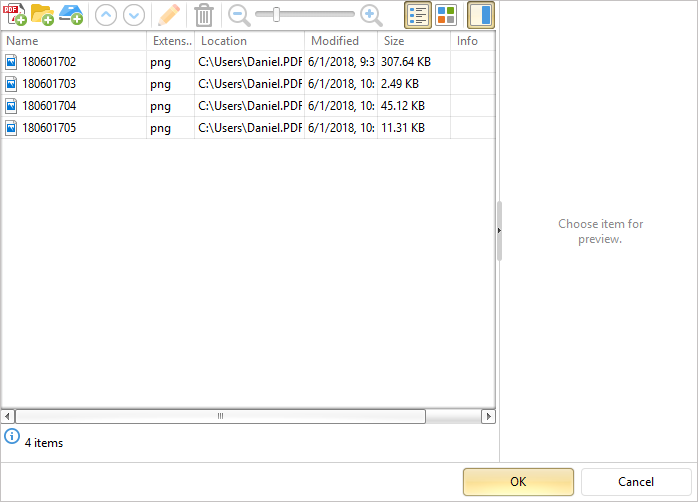
- Click the Options button in the Image to PDF dialog box to determine settings for the final document, as detailed here.
- Click OK to combine the pages into a single PDF.
PDF-XChange Viewer
1. Click File in the Menu Toolbar, hover over New Document, then click From Image File in the submenu:
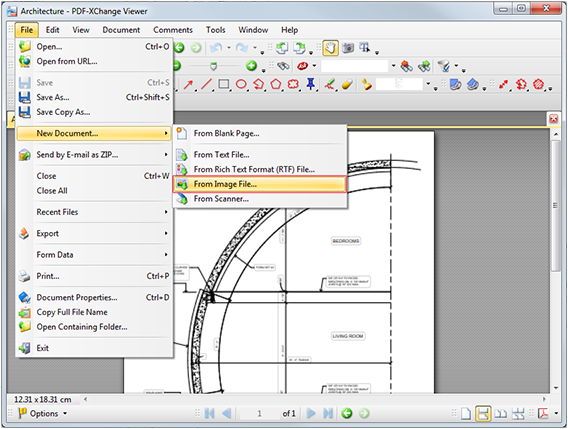
The New Document from Images dialog box will open.
2. Click Import:
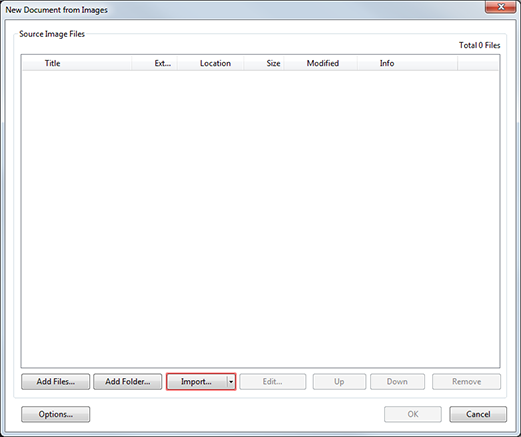
The Scan dialog box will open:
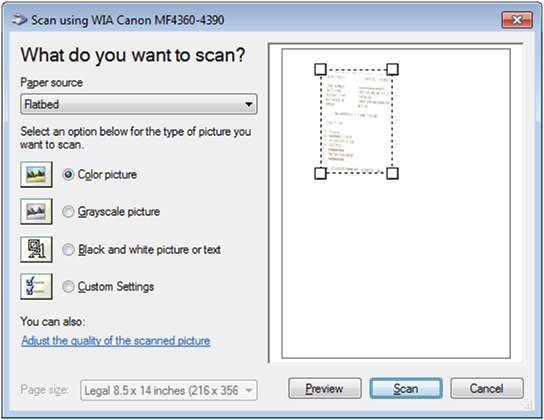
3. Click Scan. The scan will be performed and the scanned document will be displayed in the New Document from Images dialog box:
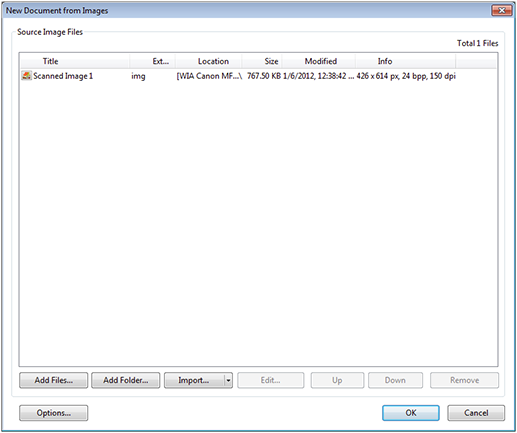
4. Repeats steps 2 and 3 until all desired scanned documents are displayed in the New Document From Images dialog box:
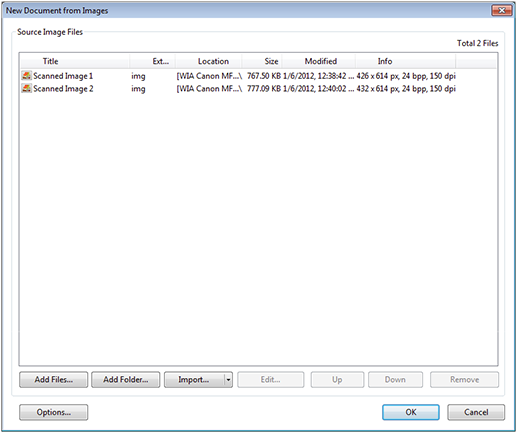
5. Click OK to combine the listed documents into a single PDF.
More Like This
- KB#456: How Do I Customize toolbars in PDF-XChange Editor?
- KB#282: Why won't the "Send by E-mail" feature work in conjunction with Microsoft Outlook?
- KB#338: What are the MSI installation switch options for the PDF-XChange family of products?
- KB#447: How do I determine what version I should install/how can I retrieve my serial key?
- KB#554: How do I Manage my License keys in V9?