Error has occurred!
- KB140
- Apr 15, 2024 12:06 PM
How do I change the default text settings for objects in PDF-XChange?
It is possible to set the default text style for both base content text, and annotations. Please Click the appropriate header below to see the process:
PDF-XChange Editor
1. Create the desired annotation or text object, and double click it to open its "text" box (if using certain tools, you will automatically enter the text box).
2. Then use the options on the Format Toolbar to edit the size, style and font.
(note that the format tab is context sensitive, and will not appear unless you have selected content which it can edit with the appropriate tool)
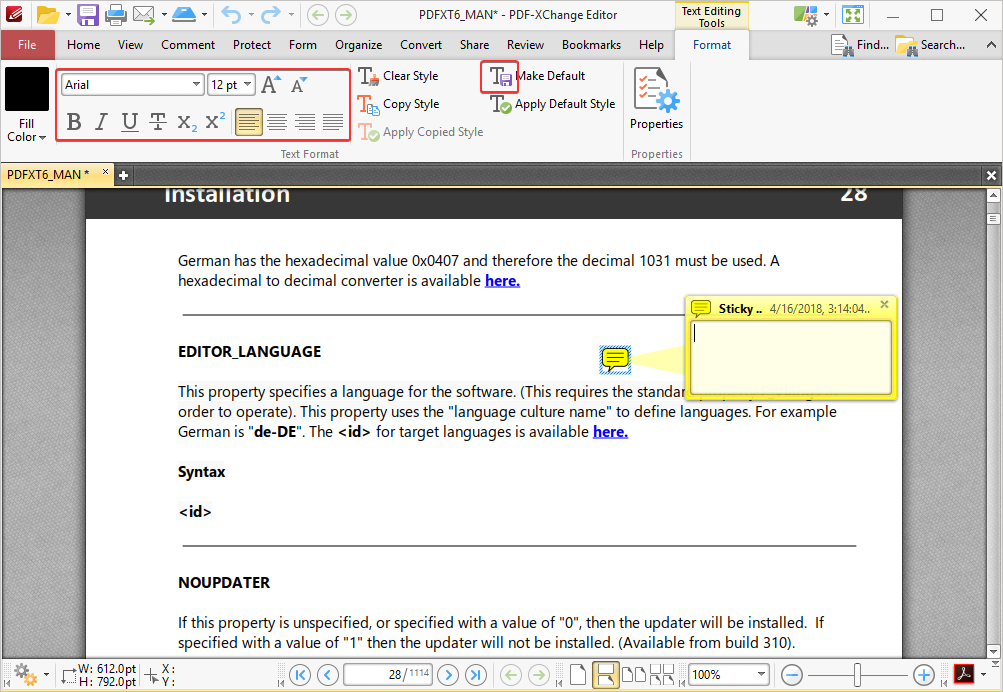
3. Click the Make Current Text Format Default button  on the Format Toolbar.
Additionally, please see KB139 for how to determine the default style of annotations.
PDF-Viewer (Discontinued)
1. Create and enter text into the desired annotation format.
2. Select the text and then use the options in the Properties Toolbar to edit the size, style and font:
.png)
3. Click the Make Default button on the right side of the Properties Toolbar.
Additionally, please see KB139 for how to determine the default style of annotations.
More Like This
- KB#456: How Do I Customize toolbars in PDF-XChange Editor?
- KB#282: Why won't the "Send by E-mail" feature work in conjunction with Microsoft Outlook?
- KB#338: What are the MSI installation switch options for the PDF-XChange family of products?
- KB#576: I Have a Problem with Contacting or Receiving Mail from PDF-XChange
- KB#447: How do I determine what version I should install/how can I retrieve my serial key?