Error has occurred!
- KB346
- Sep 11, 2020 09:15 AM
How do I use the Zoom Toolbar in PDF-XChange Editor?
Question
How do I use the Zoom options in PDF-XChange Editor?
Basic Use
The Zoom options are available on the View Tab, each function is detailed below.
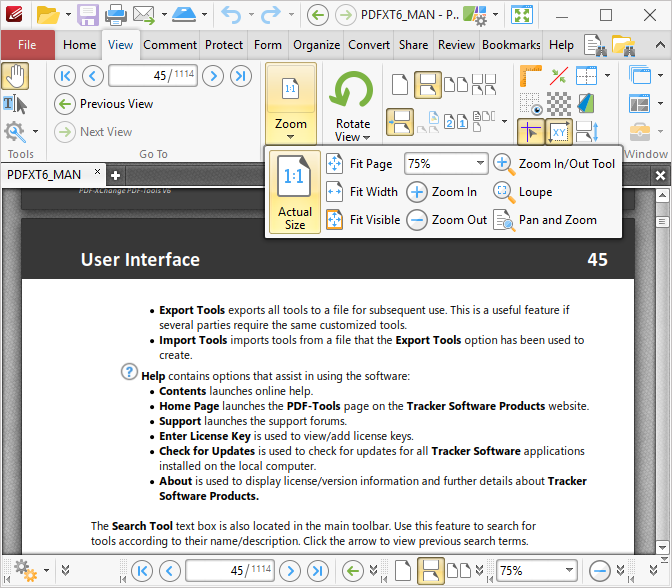
The Actual Size button set the zoom level to the actual document size within the viewing pane. (This may result in the page exceeding the limits of viewable space. If this happens then the scroll bars can be used to view the entire document).
The Fit Page button sets the borders of documents to match those of the viewing pane.
The Fit Width button fits document to match the width of the viewing pane.
The Zoom Dropbox is used to select standard zoom settings. Click the dropdown arrow to view available options. Alternatively, enter a custom figure in the number box.
The Zoom In/Out Tool increases the zoom level. The pointer becomes a magnifying glass icon when the Zoom Tool is selected. Click to zoom to the location at which the icon is located in the active document. Alternatively, click and drag to determine a rectangle and then release the mouse button to zoom to the area determined, as detailed below.
The Zoom In button increases the zoom. It focuses automatically on the center point of documents.
The Zoom Out button decreases the zoom. It focuses automatically on the center point of documents.
Zoom Tool
1. Select the Zoom In/Out Tool, then click and drag the pointer to determine the zoom area:
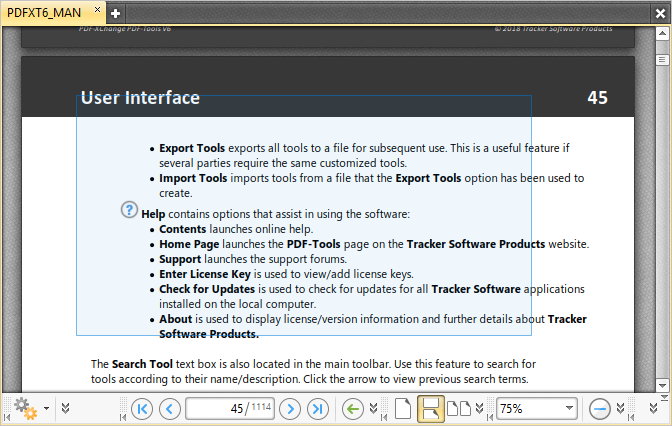
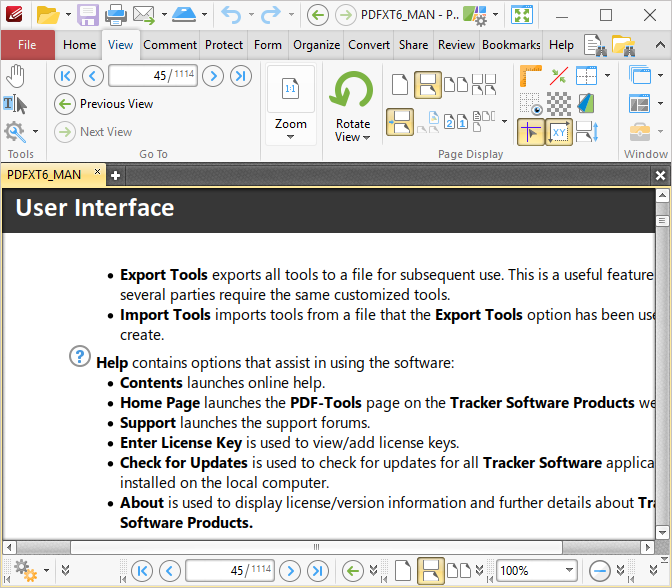
2. Release the mouse button to zoom the current view to the area determined:
Loupe Tool
The Loupe Tool is used to assist in the editing of PDF documents. Click Loupe Tool to select the Loupe Tool, then click within the document to determine the contents of the Loupe Pane. A rectangle will appear, as detailed below. The area that the rectangle contains is displayed the Loupe Pane:
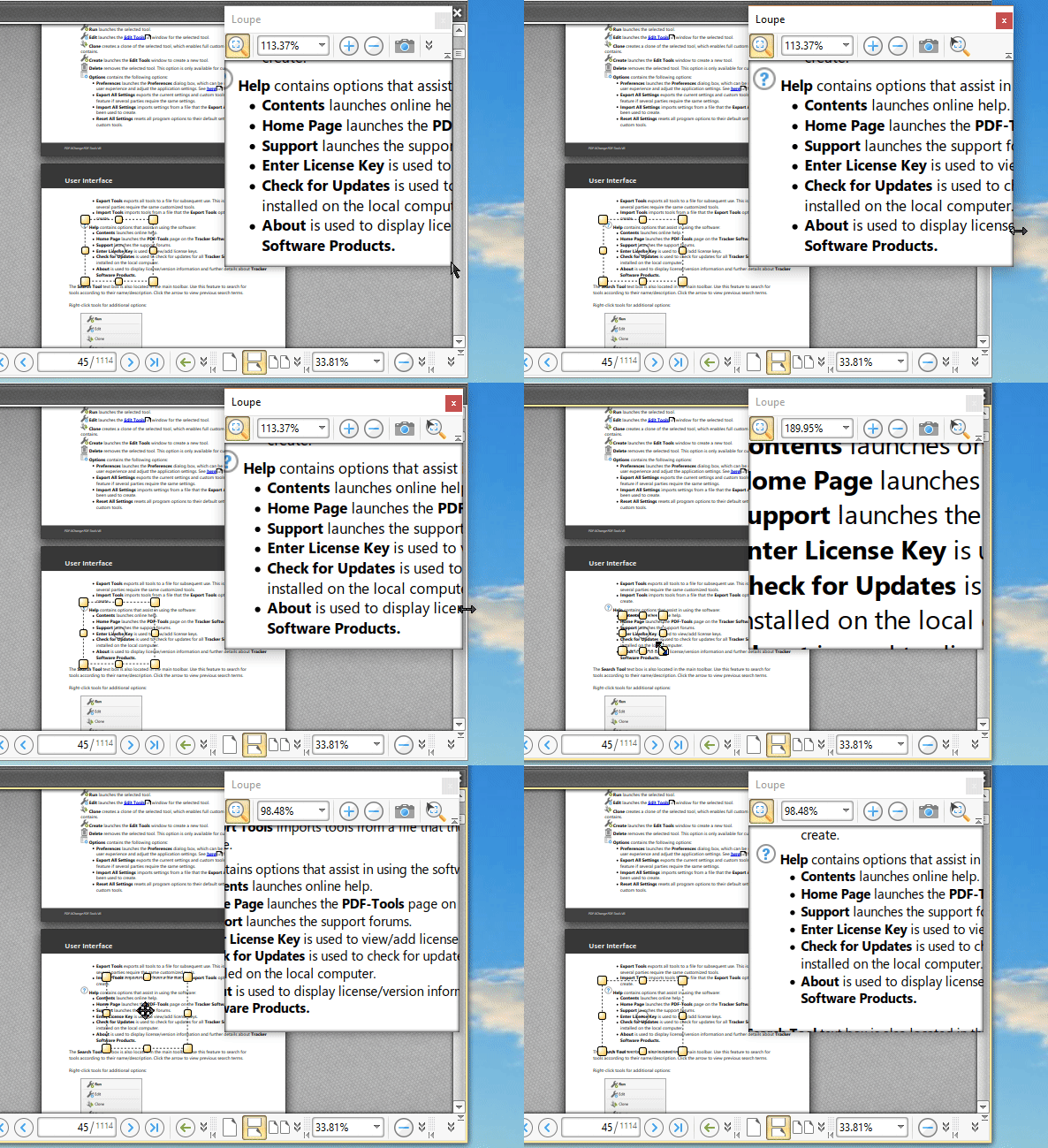
- Use the yellow control points to resize the Loupe rectangle. (Please note that proportions are constrained. Adjust the size of the Loupe Pane to determine the proportions of the Loupe rectangle. Click and drag the edges of the Loupe pane to adjust its size).
- Click and drag the Loupe rectangle to reposition it. The Loupe Pane will update accordingly.
- Use the number box in the Loupe pane toolbar, or the plus and minus icons, to determine the level of zoom displayed in the pane.
- Use the camera icon in the Loupe pane toolbar to take a snapshot of the current display. A bitmap copy of the selection will be pasted to the clipboard of the local computer.
- Use the track mouse icon in the Loupe pane toolbar to enable/disable the Track Mouse feature. When this feature is enabled the Loupe Tool will follow the pointer. (Please note that the size of the Loupe rectangle cannot be adjusted when the Track Mouse feature is in use).
- Click and drag the Loupe Pane to reposition it on the screen. When it is selected, four icons will appear in the center of the borders of the main window. Move the pointer onto any of these icons and release the mouse to add the Loupe pane as a toolbar at the selected location.
Pan and Zoom Tool
This feature facilitates the simple and efficient viewing of zoomed documents. Click Pan and Zoom to activate the pan and zoom feature:
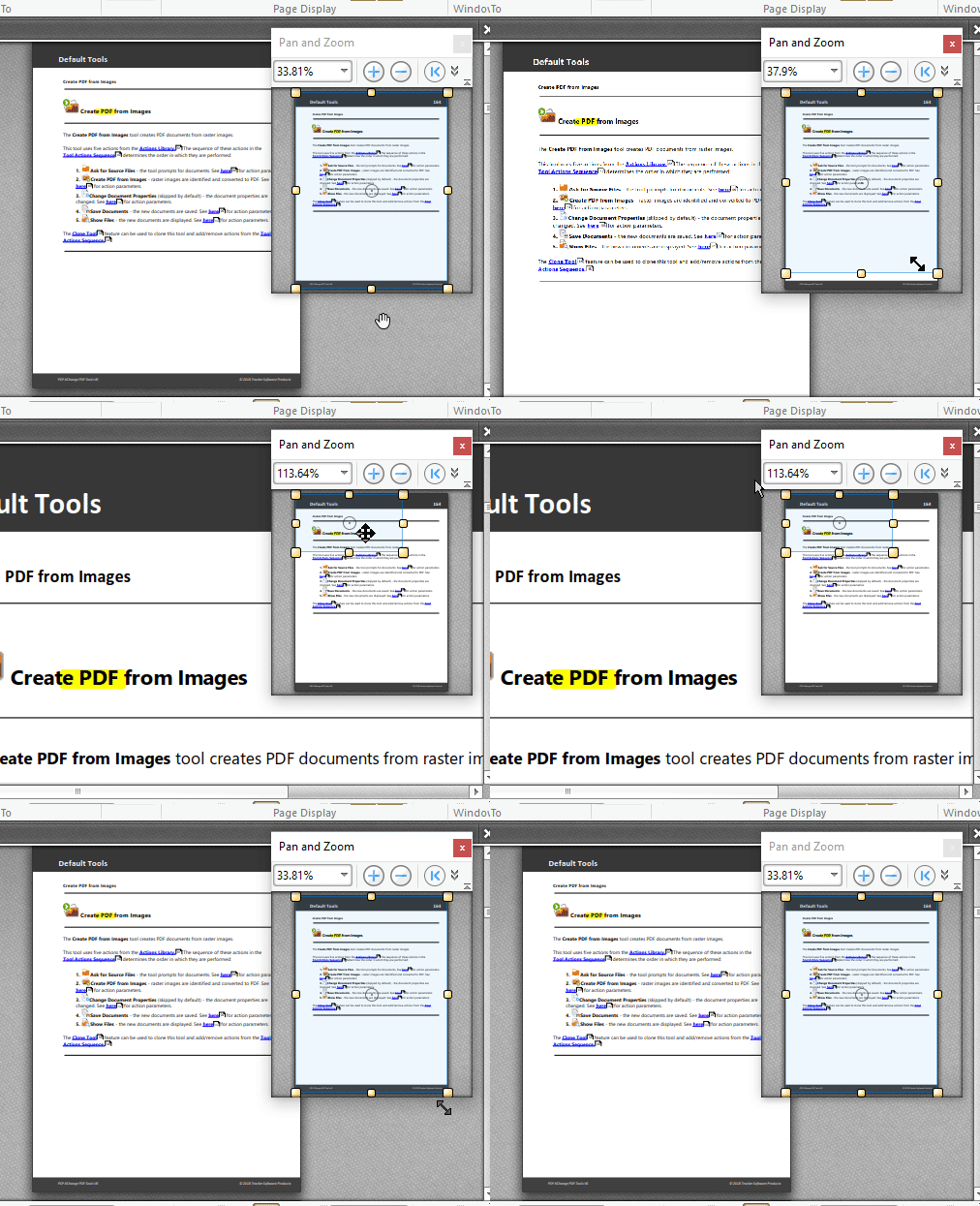
- The blue rectangle determines the current view.
- Adjust the yellow control points to manipulate the pan and zoom. Alternatively, use the plus and minus icons in the toolbar to zoom incrementally, or enter a custom zoom percentage in the number box.
- Click and drag the rectangle in the Pan and Zoom pane to adjust the current view in the main window.
- Use the arrow icons in the Pan and Zoom toolbar to move between document pages.
- Use the camera icon to take a snapshot of the current view in the Pan and Zoom pane. A bitmap copy of the selection will be pasted to the clipboard of the local computer.
- Click and drag the Pan and Zoom pane to reposition it on the screen. When it is selected, four icons will appear in the center of the borders of the main window. Move the pointer onto any of these icons and release the mouse to add the Pan and Zoom pane as a toolbar at the selected location.
More Like This
- KB#456: How Do I Customize toolbars in PDF-XChange Editor?
- KB#282: Why won't the "Send by E-mail" feature work in conjunction with Microsoft Outlook?
- KB#338: What are the MSI installation switch options for the PDF-XChange family of products?
- KB#447: How do I determine what version I should install/how can I retrieve my serial key?
- KB#195: What is the difference between Place Signature, Sign Document and Certify in PDF?