Error has occurred!
- KB351
- Apr 23, 2024 11:41 AM
How do I OCR documents in PDF-XChange?
Question
How do I perform OCR on documents?
How do I convert image-based documents into text-searchable documents?
Answer
Please note that OCR (optical character recognition) scans image-based documents, recognizes text and then inserts an invisible text-layer over the text. The text layer contains identical text to that recognized in the document. This means that the original, image-based text in documents can effectively be searched and selected via the invisible text layer, which is the main benefit of OCR. However, it should be noted that the document text cannot be edited in the same manner as normal, text-based documents - as it remains an image-based document, despite the invisible text layer. Follow the steps below to perform OCR:
PDF-XChange Editor
1. Click Convert in the Ribbon Toolbar, then click OCR Page(s) in the submenu.

The OCR Pages dialog box will open:
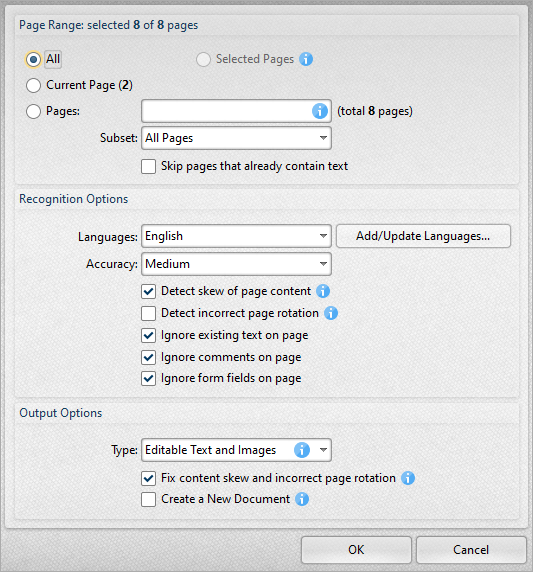
The Page Range options are as follows:
- Select All to OCR all the pages of the document.
- Select Current Page to OCR only the current page.
- Use Selected Pages to OCR only the pages pre-selected from the Thumbnails pane.
- Use the Pages box to determine specific pages of the document on which to perform the OCR process. Page range settings are detailed here.
- Use the Subset option to select All Pages, Odd Pages Only or Even Pages Only.
The Recognition options determine the language and accuracy of the OCR process:
- If the desired language is not available in the dropdown menu, then click Add/Remove Languages for further options. Increasing the accuracy increases the time that the process takes and vice versa. Additionally, it should be noted that setting the accuracy to high may result in unusual output if the document on which the operation is carried out features imperfections. This is because the software will search to a greater depth and may attempt to recognize imperfections as text.
The Output options determine the format of the output information from the OCR process:
- Select one of Searchable Image, Editable Text and Images, or Fine Page Content, as desired.
- These three options are explained in greater detail in the dropdown itself, as well as in the Manual.
- Select the Auto Deskew option to deskew documents automatically. (Deskewing is a useful feature that straightens images that have been photographed or scanned crookedly).
2. Click OK to OCR documents.Please note that it is also possible to OCR documents when scanned content or images are used to create PDF documents, seen next section.
Image
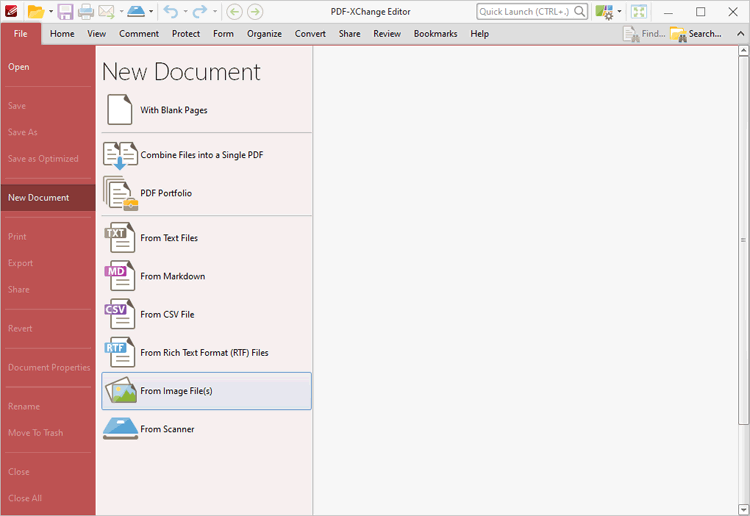
1. Click File in the Ribbon Toolbar, then click New Document and click From Image File(s):
The Images to PDF dialog box will open:
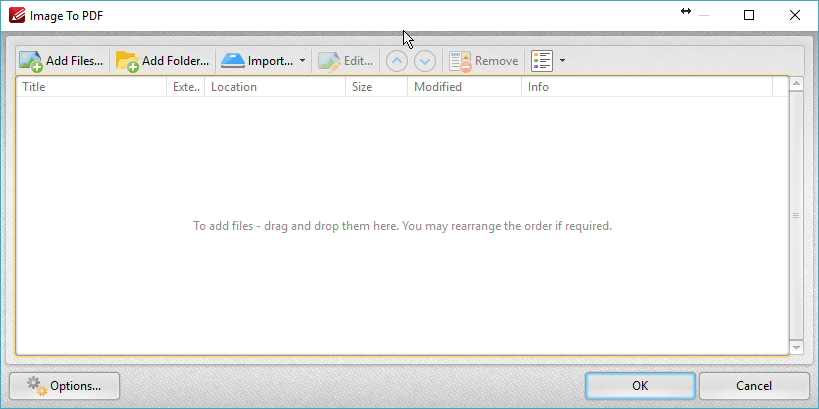
2. Add files and determine settings as detailed here.
3. Click Options for further options. The Image to PDF Options dialog box will open. Click Image Post-Processing to view OCR options when images are converted to PDF:
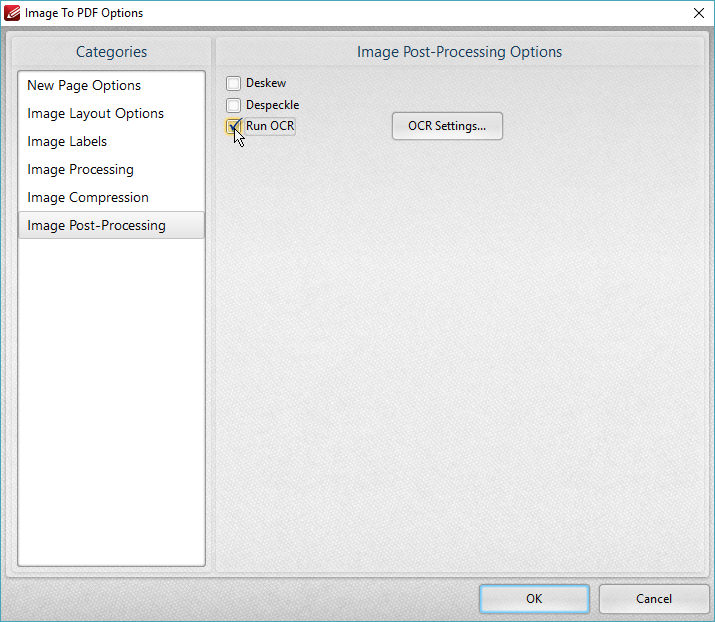
4. Select the Run OCR box to OCR images when they are converted to PDF. Click OCR Settings to determine language and accuracy options, as detailed above.
Scanning
1. Click File, then click New Document.
2. Click From Scanner, then click Custom Scan:
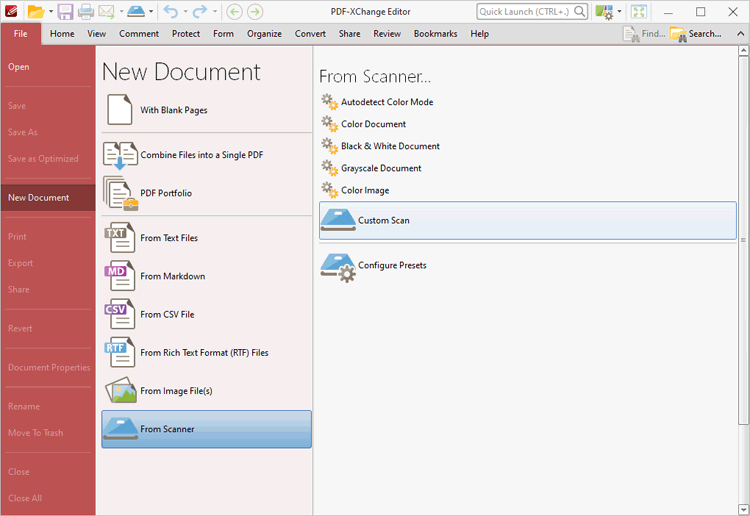
3. The Scan Properties dialog box will open:
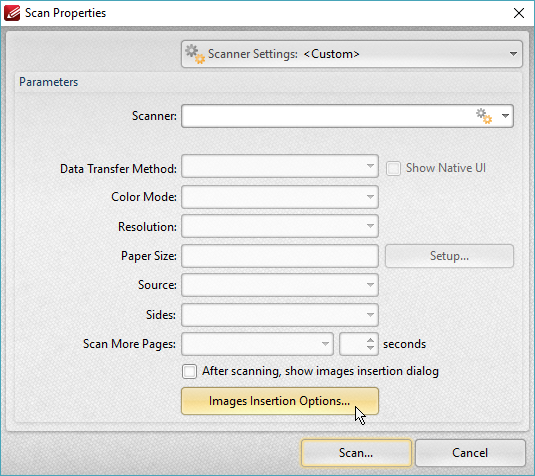
4. Determine settings as detailed here.
5. Click Images Insertion Options to determine options for inserted images. The Image to PDF Options dialog box will open. Click Image Post-Processing to view OCR options when scanned content is converted to PDF:
6. Select the Run OCR box to OCR images when they are converted to PDF. Click OCR Settings to determine language and accuracy options, as detailed above.
PDF-Tools
Note that you can create custom tools, including the OCR or Scan actions, by following the steps in this article.
1. Open PDF-Tools and locate the OCR Pages tool (or your custom tool), double click it to run it:
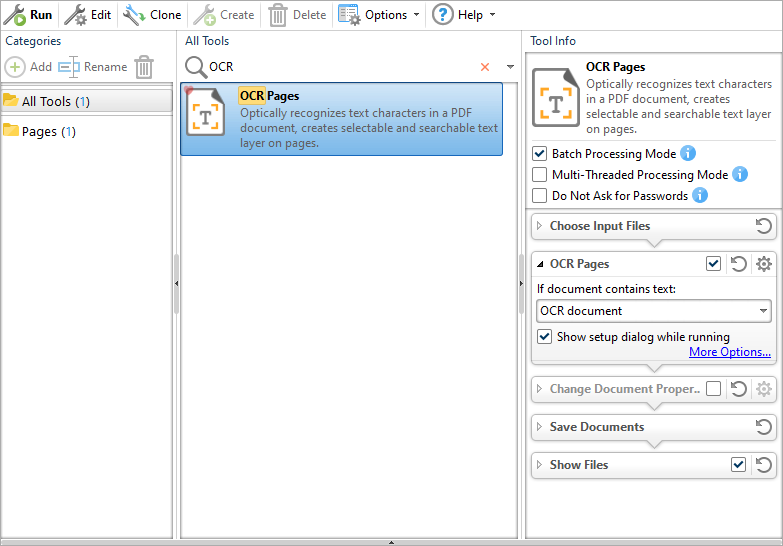
2. Select the file(s)/Folder(s) to be processed by this tool. (You can skip this step by simply dragging and dropping the desired files directly onto the Tool mentioned in step 1)
3. The OCR Pages dialog box will open (unless your custom tool is preconfigured and set to skip this step):
The Page Range options are as follows:
Select All to OCR all the pages of the document.
Select Current Page to OCR only the current page.
Use Selected Pages to OCR only the pages pre-selected from the Thumbnails pane.
Use the Pages box to determine specific pages of the document on which to perform the OCR process. Page range settings are detailed here.
Use the Subset option to select All Pages, Odd Pages Only or Even Pages Only.
The Recognition options determine the language and accuracy of the OCR process:
If the desired language is not available in the dropdown menu, then click Add/Remove Languages for further options. Increasing the accuracy increases the time that the process takes and vice versa. Additionally, it should be noted that setting the accuracy to high may result in unusual output if the document on which the operation is carried out features imperfections. This is because the software will search to a greater depth and may attempt to recognize imperfections as text.
The Output options determine the format of the output information from the OCR process:
Select one of Searchable Image, Editable Text and Images, or Fine Page Content, as desired.
These three options are explained in greater detail in the dropdown itself, as well as in the Manual.
Select the Auto Deskew option to deskew documents automatically. (Deskewing is a useful feature that straightens images that have been photographed or scanned crookedly).
3. Click OK to OCR documents.Please note that it is also possible to OCR documents when scanned content or images are used to create PDF documents. You can either create a Custom tool to performing both scanning and OCR, or you can perform that step in our PDF-XChange Editor, as detailed ion the section above.
PDF-XChange Viewer (Discontinued)
1. Click Document in the Menu Toolbar, then click OCR Pages in the submenu (or press Ctrl+Shift+C). The OCR Pages dialog box will open:
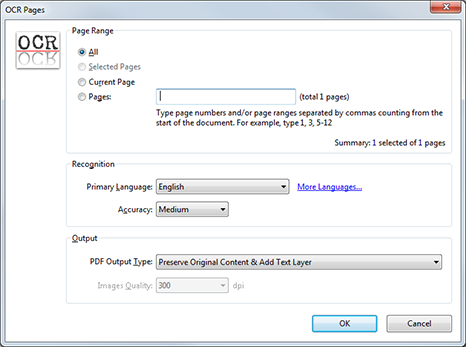
- The Pages Range options are as follows:
- Select All to OCR all the pages of the document.
- Select Selected Pages to OCR only the pages currently selected in the document.
- Select Current Page to OCR only the current page.
- Select Pages to determine specific pages of the document on which to perform the OCR process. Enter the desired page range(s) in the text box.
- The Recognition options determine the language and accuracy of the OCR process. If the desired language is not available in the dropdown menu, then click More Languages for further options. Increasing the accuracy increases the time that the process takes and vice versa. Additionally, it should be noted that setting the accuracy to high may result in unusual output if the document on which the operation is carried out features imperfections. This is because the software will search to a greater depth and may attempt to recognise imperfections as text.
- The Output options determine the format of the output information from the OCR process:
- Select Preserve Original Content & Add Text Layer to have PDF-XChange Viewer analyze the document, recognize text and then insert an invisible text-layer over the text. N.b. The text layer contains identical text to that recognized in the document. This means that the original, image-based text in documents can effectively be searched and selected via the invisible text layer, which is the main benefit of OCR. However, it should be noted that the document text cannot be edited in the same manner as normal, text-based documents - as it remains an image-based document, despite the invisible text layer.
- Select Convert Page Content to Image only - Add Text As a Layer to convert documents that contain both images and text into a single, consolidated image. If this option is selected then use the Images Quality dropdown menu to determine the resolution in dpi (dots per inch) of the created image. N.b. If this mode is used for image-only documents, then the only change will be the resolution of the image (when the initial dpi is different from the dpi specified in the Images Quality dropdown menu - otherwise no changes will occur). Please note that output documents from this process will replace input documents. If input documents in their original format will be needed subsequently then a copy should be made before this process is performed.
2. Click OK to OCR documents.
More Like This
- KB#456: How Do I Customize toolbars in PDF-XChange Editor?
- KB#282: Why won't the "Send by E-mail" feature work in conjunction with Microsoft Outlook?
- KB#338: What are the MSI installation switch options for the PDF-XChange family of products?
- KB#447: How do I determine what version I should install/how can I retrieve my serial key?
- KB#286: How do I manage licenses for PDF-XChange Products on a Windows Terminal Server?